
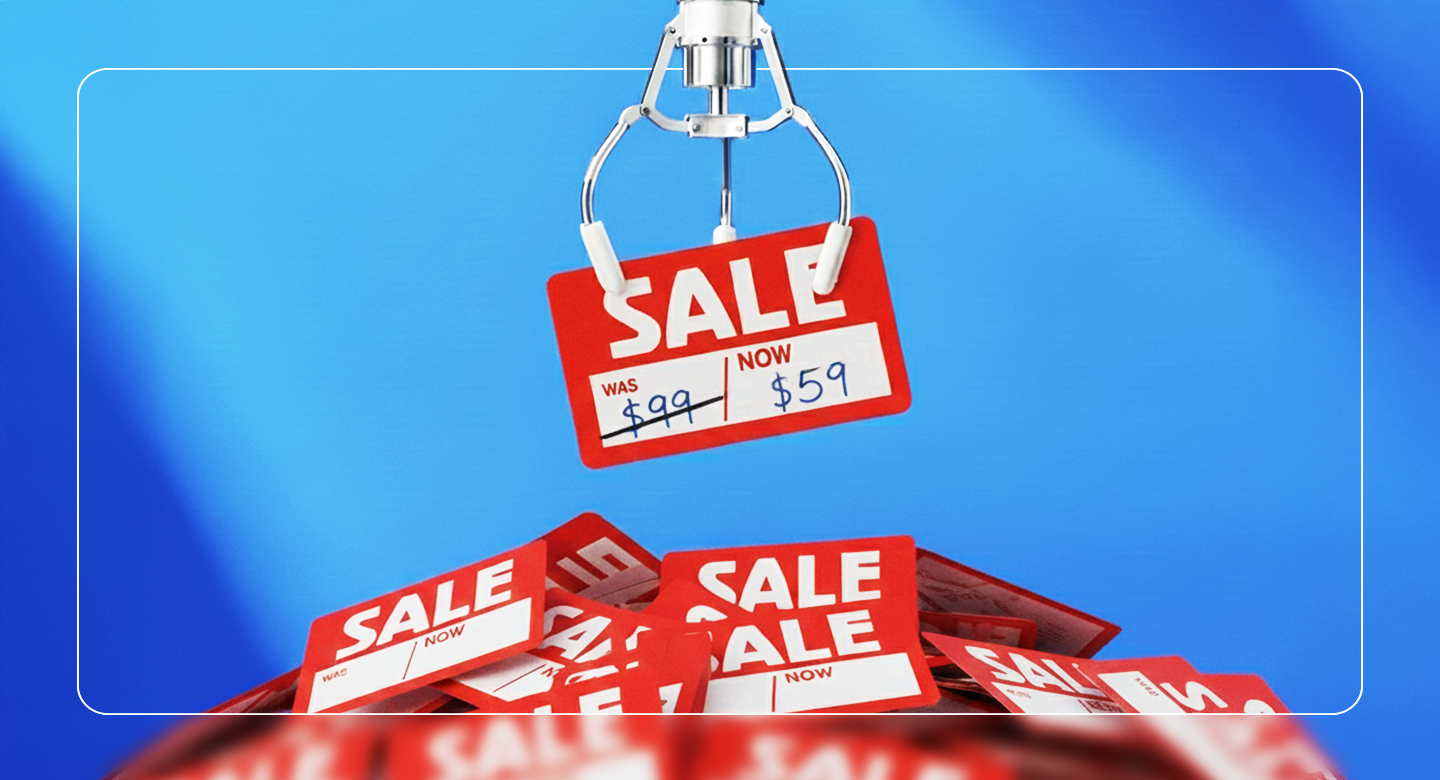
If you've set up products on your Shopify store, you may have come across a field called "compare-at-price".
This can be confusing given there's also a field called "price".
This is a common question and were going to break down what both fields mean, and how to use them to boost your on site conversions!
When entering your product data in Shopify, you may notice there's two price fields, one called "price" and another called "compare-at-price".
"Price" is where you enter your current selling price - ie. the price that will display on your storefront and customers will be able to purchase the product at this price.
"Price" is essential on all products.
"Compare-at-price" is an optional field that can be used to hold the product's RRP or original price.
This then allows a comparision between the "price" and the "compare-at-price".
If you have discounted items on your store - that is, they are selling below RRP - using the compare-at-field is a powerful way to convert shoppers.
When your "price" is lower than your "compare-at-price", your products will be displayed as "on sale".
The exact features this triggers will vary between themes, but generally this involves adding the original price with a strikethrough and the sale price alongside. eg $̶2̶9̶9̶ $199
Displaying a strikethrough price shown to dramatically influence shopper behavior and can increase conversions significantly versus if the same price was displayed on it's own.
A strikethough and sale price trigger a range of psychological effects in the shopper such as:
A strikethrough is one of the most powerful pricing psychology tools available in ecommerce. It’s why every major retailer and marketplace in the world uses strikethrough pricing as a core conversion technique.
If you're not using your compare-at-field, you're almost certainly missing out on sale conversions.
If you’d rather skip the manual work of updating prices manually for your next sale, Discount Pal automates the entire process.
Set up your sale campaign and Discount Pal will update your "price" and "compare-at-price" fields to suit - so you can maximize conversions!
Discount Pal works like Shopify’s built-in Discounts app — you still choose products and set up sale campaigns — but it uses a smarter process that displays discounted prices across your whole store using your theme’s native sale design elements. Plus it has other useful features like auto-tagging to make campaign set up quick and easy.
In short — it’s everything merchants wish the default Discounts app did.
Level up your sales campaigns - try Discount Pal for free on your Shopify store and boost your conversions today!
Price is your current selling price — the amount customers actually pay.
Compare-at-price is the original or RRP price used to show a discount. When compare-at-price is higher, your theme shows a sale badge or strike-through price.
Use it whenever you are selling a product below its original price or RRP.If price < compare-at-price, Shopify shows the product as “on sale”, which increases visibility and often boosts conversions.
Common reasons include:
Most of the time, it’s because Shopify’s own Discounts app doesn’t update price fields — it only applies discounts in the cart.
Yes. A strike-through price taps into powerful pricing psychology:
Retailers consistently see higher conversion rates when sale prices and compare-at-prices are displayed together.
You have three options:
If you're running more than one sale, automation is usually the fastest and cleanest method.
Yes. Apps like Discount Pal can:
This avoids the manual work Shopify’s native Discounts app can’t handle.
Yes — but only if your actual product fields are updated.
If you rely on a discount applied at checkout (how Shopify's Discounts app works) Google won’t display the sale price.
Using compare-at-price is the recommended method to show your discounted price in:
This typically improves CTR and ad performance.